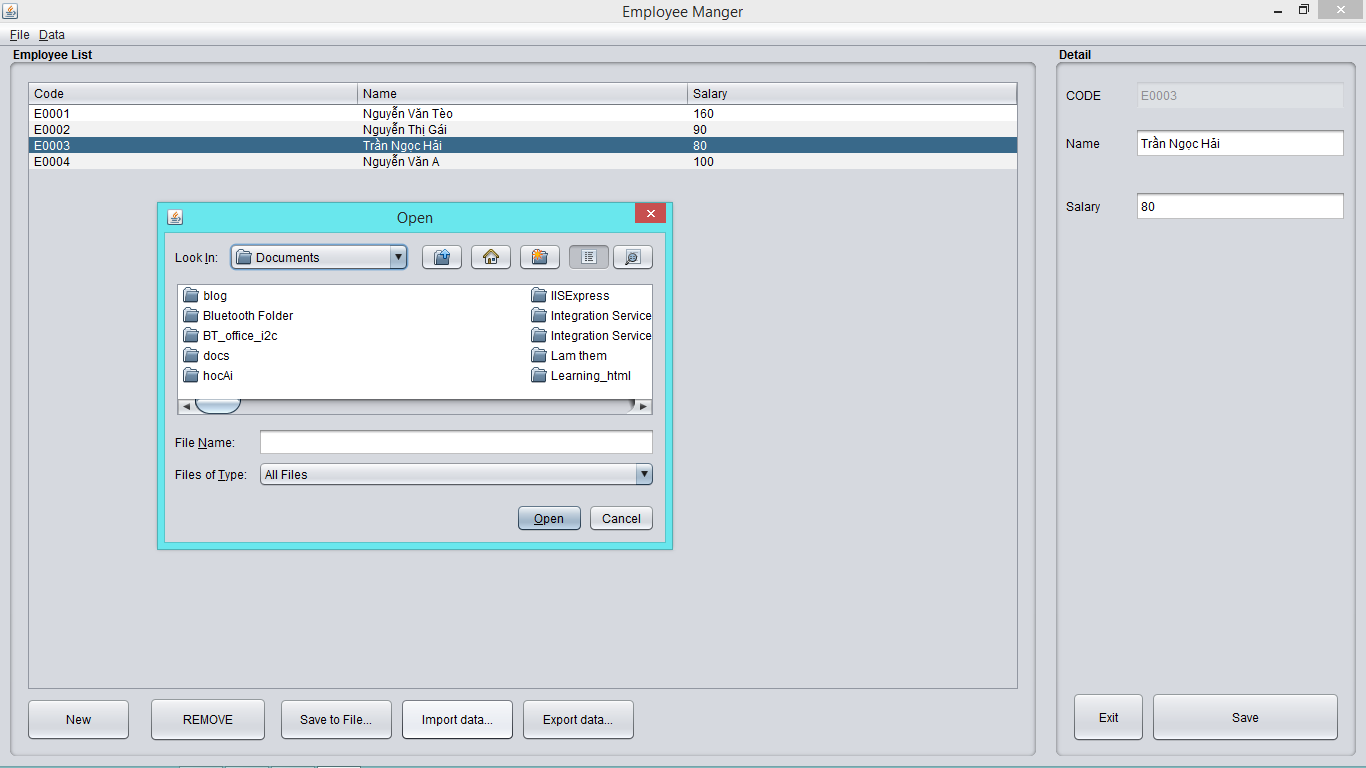
Hi everyone. Today, someone asked me on Facebook how to create Open and Save dialogs with Java Swing. So I decided to write this short introduction to these two basic dialogs.
What are Open and Save dialogs?
In essence, these dialogs help you get the path to a file so your program can work with it. For example, suppose you are writing a music player. Instead of asking users to type the full path to a song into a plain text field, you can show an Open dialog and let them browse for the file, much as they would in Windows Explorer.
The Save dialog works similarly. Its familiar interface lets users choose a folder and enter a name for the file they want to create. Your program can then take care of saving it.
Both dialogs are common in operating systems with graphical user interfaces. Windows is a familiar example.
How does Swing provide Open and Save dialogs?
Swing provides both dialogs through the JFileChooser class. First, import it:
import javax.swing.JFileChooser;
The basic steps for Open and Save dialogs are almost the same.
Step 1: Create a JFileChooser instance
JFileChooser c = new JFileChooser();
Step 2: Show the Open or Save dialog
To let the user choose a file to open, call:
int rVal = c.showOpenDialog(null);
To let the user choose where to save a file, call:
int rVal = c.showSaveDialog(null);
Both methods return an int indicating how the dialog closed:
JFileChooser.APPROVE_OPTION: The user approved a file selection.JFileChooser.CANCEL_OPTION: The user canceled without selecting a file.JFileChooser.ERROR_OPTION: An error occurred or the dialog was dismissed.
Both showOpenDialog and showSaveDialog take a Component argument for the dialog's parent. You can pass null, but it is usually better to pass your current window so the dialog is associated with it.
Step 3: Handle the selected file
After showing either dialog, check whether the user approved the selection before working with the file:
if (rVal == JFileChooser.APPROVE_OPTION) {
    String filename = c.getSelectedFile().getName();
    String dir = c.getCurrentDirectory().toString();
}
To get the selected file's name, use:
c.getSelectedFile().getName();
To get the directory currently displayed by the dialog, use:
c.getCurrentDirectory().toString();
In the original Windows example, the directory and file name are combined like this:
String filePath = dir + "\\" + filename;
That separator is specific to Windows. If your program should work across operating systems, you can get the selected file's full path directly:
String filePath = c.getSelectedFile().getAbsolutePath();
What you do with the chosen file next depends on your program.
Good luck!
Công Hậu